

Paypal
How to provide Justt access to your PayPal account. To enable Justt to process and manage your chargebacks, please integrate your PSP with Justt by following these steps. Once you get the required keys, insert them in the right place at the Integrations Page (CustomerHub) and complete your PSP connection.
Part 1: API Key — Client ID and Secret
Step 1: Log in to the PayPal Developer Portal
Go to https://developer.paypal.com/home and sign in.
Step 2: Switch to Live mode
In the top right corner of the dashboard, toggle from Sandbox to Live.
Step 3: Create a new app
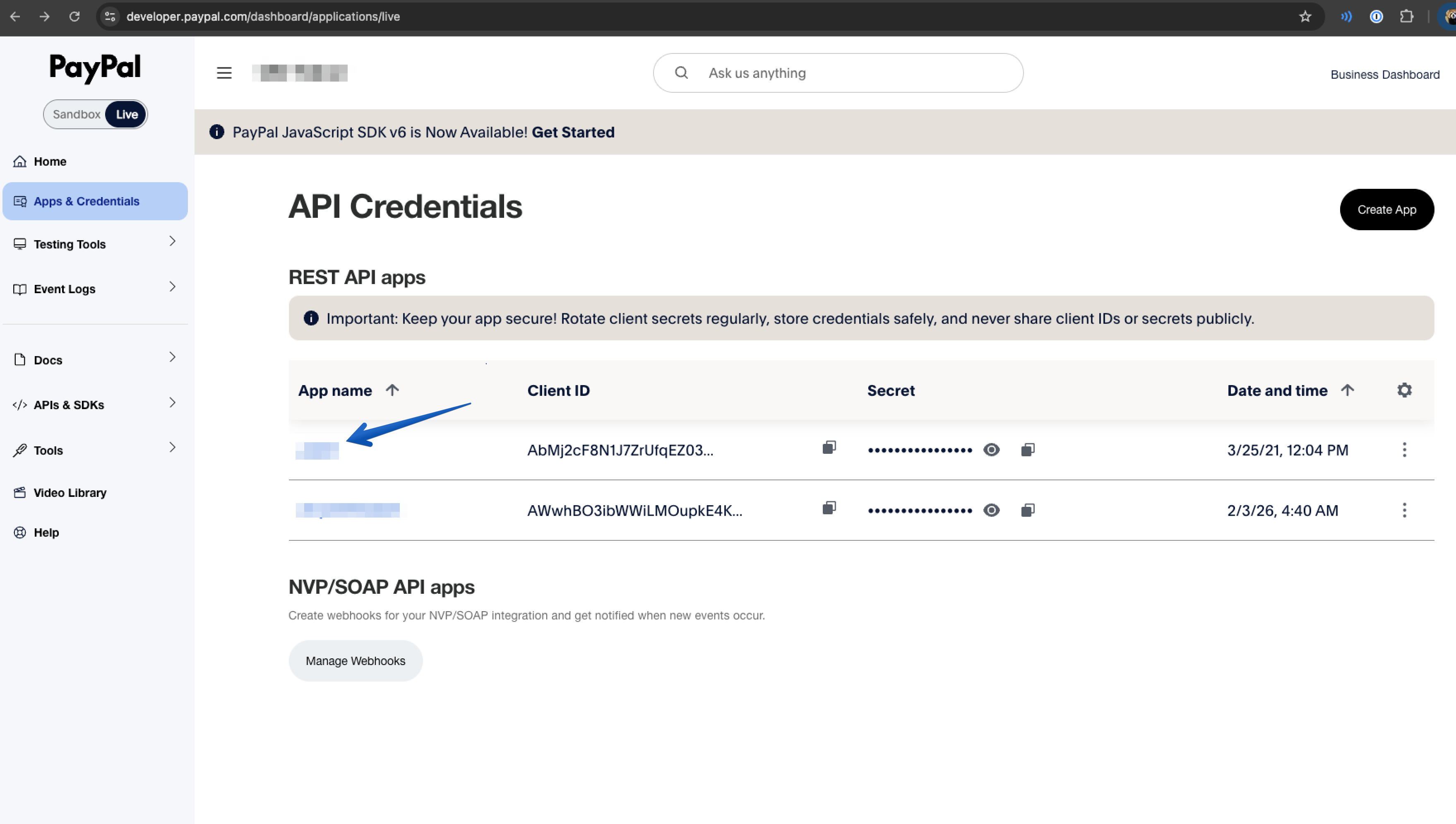
Click on Apps & Credentials, then click Create App. Name the app "Justt".
Step 4: Configure app permissions
You will be redirected to the app details page. Scroll down and enable the following settings, then click Save changes:
- Transaction Search
- Disputes (read + write)
Step 5: Set user permissions
Click on Team → Users → select your currently connected user → click Edit.
Ensure the user has the required API access permissions enabled.
Step 6: Copy the Client ID and Secret
Scroll back up on the app page and copy both:
- Client ID
- Secret (click "Show" to reveal it)
Paste these into the Justt CustomerHub under the PayPal integration section.
Part 2: Webhooks
Setting up a webhook allows Justt to automatically receive real-time transaction data from PayPal, improving the quality of chargeback submissions. Skip this section if you chose API Key only.
Step 7: Go to Live Webhooks
- In the PayPal Developer Dashboard, make sure you are in Live mode.
- Navigate to Apps & Credentials.
- Select your own application, where you are creating transactions. Scroll down to find the Webhooks section (or go directly to the "Live Webhooks" page).
Step 8: Click "Add Webhook"
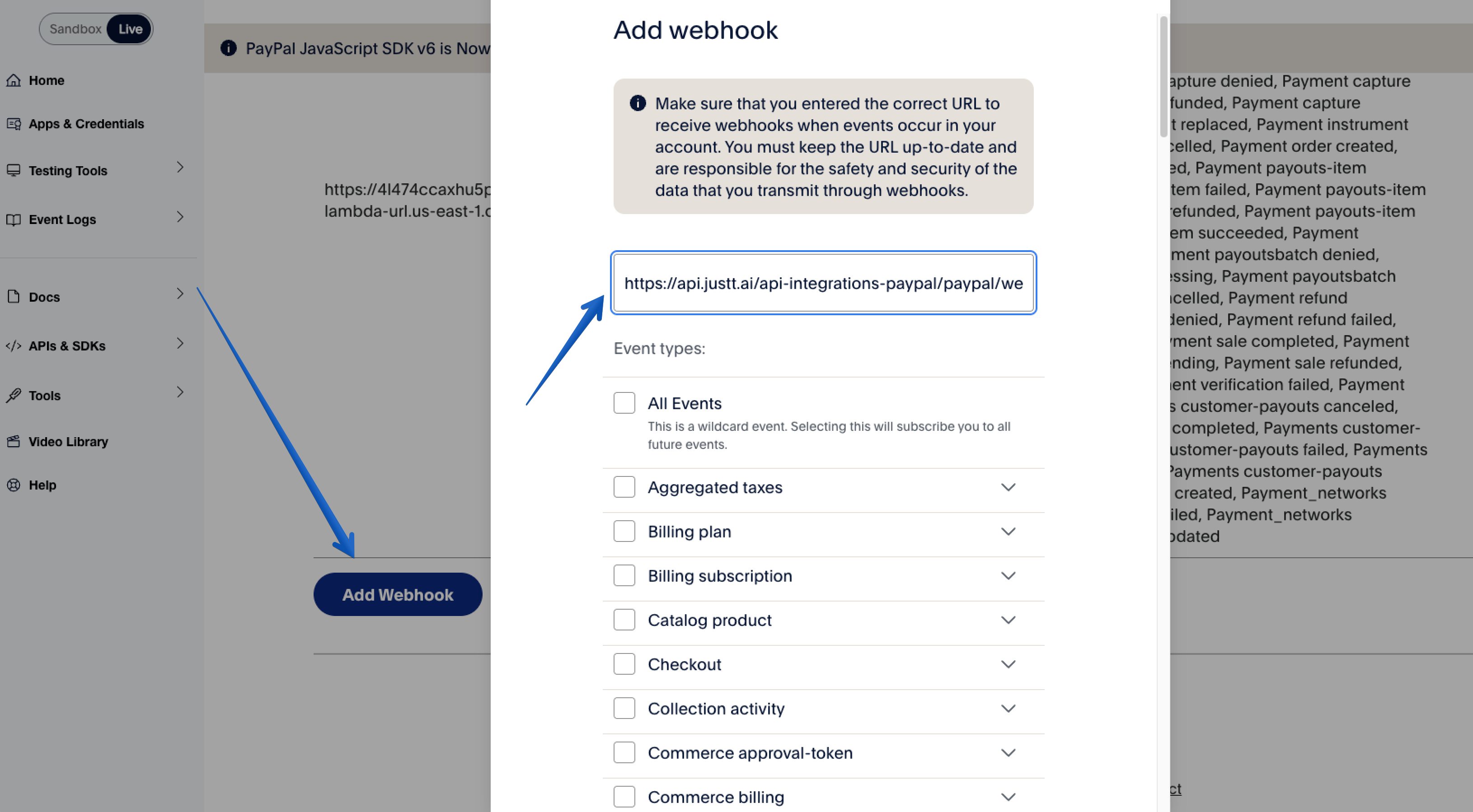
Click the Add Webhook button.
Note: PayPal allows a maximum of 10 webhooks per application.
Step 9: Enter the Webhook URL
-
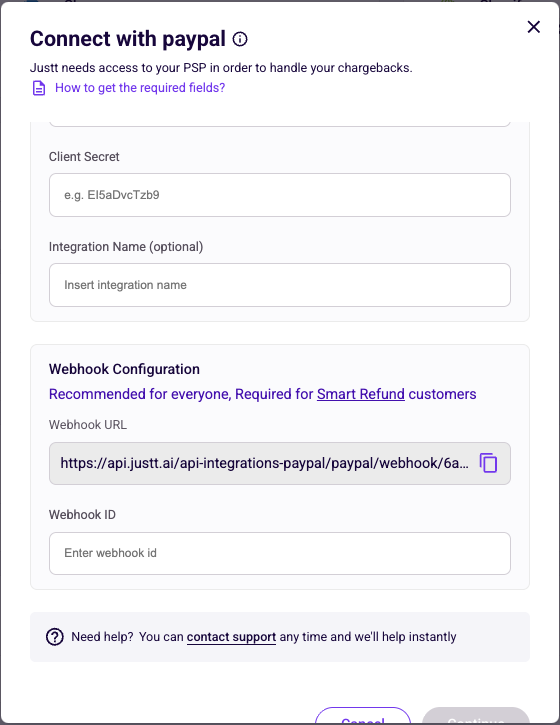
Copy the Justt Webhook endpoint, from the PayPal integration page in the Justt Customer Hub
-
In the Webhook URL field, paste the Justt webhook endpoint
Step 10: Select the event types
Under Event types, find and check
- Customer dispute > Customer dispute created (Mandatory)
- Payments & Payouts > Payment capture completed (Optional - required if Justt should refund transactions on your behalf)
Step 11: Save and copy the Webhook ID
Click Save. Once saved, you will see a confirmation screen displaying your new Webhook ID (e.g. 75M12339Y6202761M).
Copy this Webhook ID.
Step 12: Paste the Webhook ID in the Justt Customer Hub
Go back to the Integrations Page in the Justt CustomerHub and paste the Webhook ID into the PayPal Webhook ID field.
That's it! 👏
Please insert all required keys in the Justt CustomerHub to complete the integration process. Let your Justt POC know once you're done so they can move forward.
Updated about 1 month ago